Open journal administration
Sign in from the journal’s stable portal and open Journal Settings. A journal administrator’s authority applies to the assigned journal; platform and publisher administrators inherit administration within their scope.
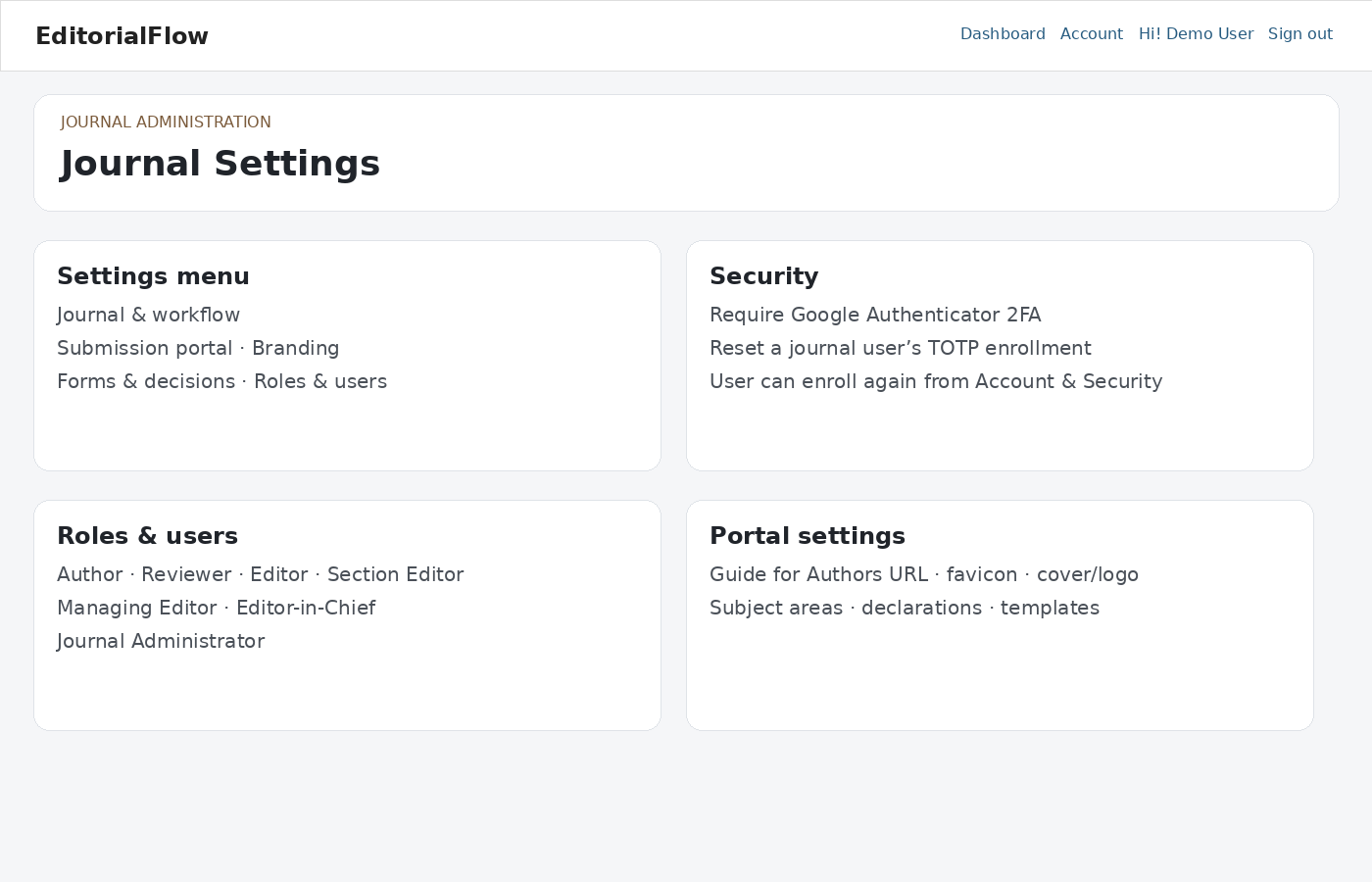
Configure the journal
- Review journal identity, logo, cover, favicon, colors, overview, publishing website and Guide for Authors link.
- Configure article types, subject areas, required reviews, submission options and permitted upload extensions/size.
- Review abstract requirements, cover letter settings, declarations and downloadable templates. Verify each template opens from an author account.
- Configure manuscript numbering carefully. Changing prefixes affects new manuscript identifiers; it does not renumber historical records.
- Review SMTP, email layout and templates. Retain supported placeholders and test representative messages before use.
Roles & users
Find the correct existing account before assigning a role. Add or deactivate journal memberships as staff responsibilities change. Review reviewer interests, expertise and ORCID where available. Deactivating a journal membership does not remove the platform identity.
Editorial Login and email sign-in links — Version 2.7.0
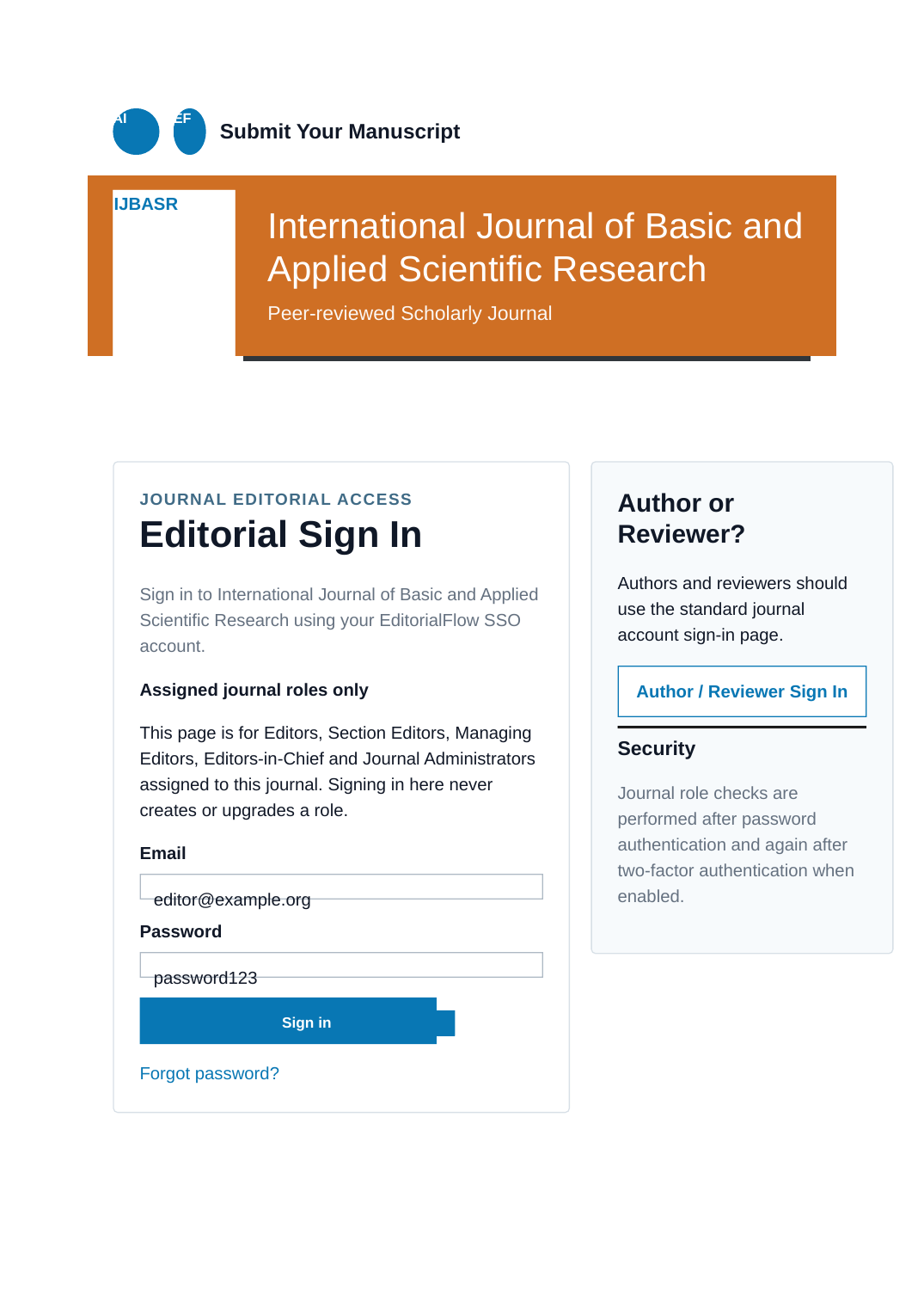
Under Journal Settings → Roles & Users, maintain the dedicated Editorial Login slug and decide whether its footer link is public. The staff page now displays Editorial Sign In. It accepts only active Editor, Section Editor, Managing Editor, Editor-in-Chief and Journal Administrator memberships and never creates a role.
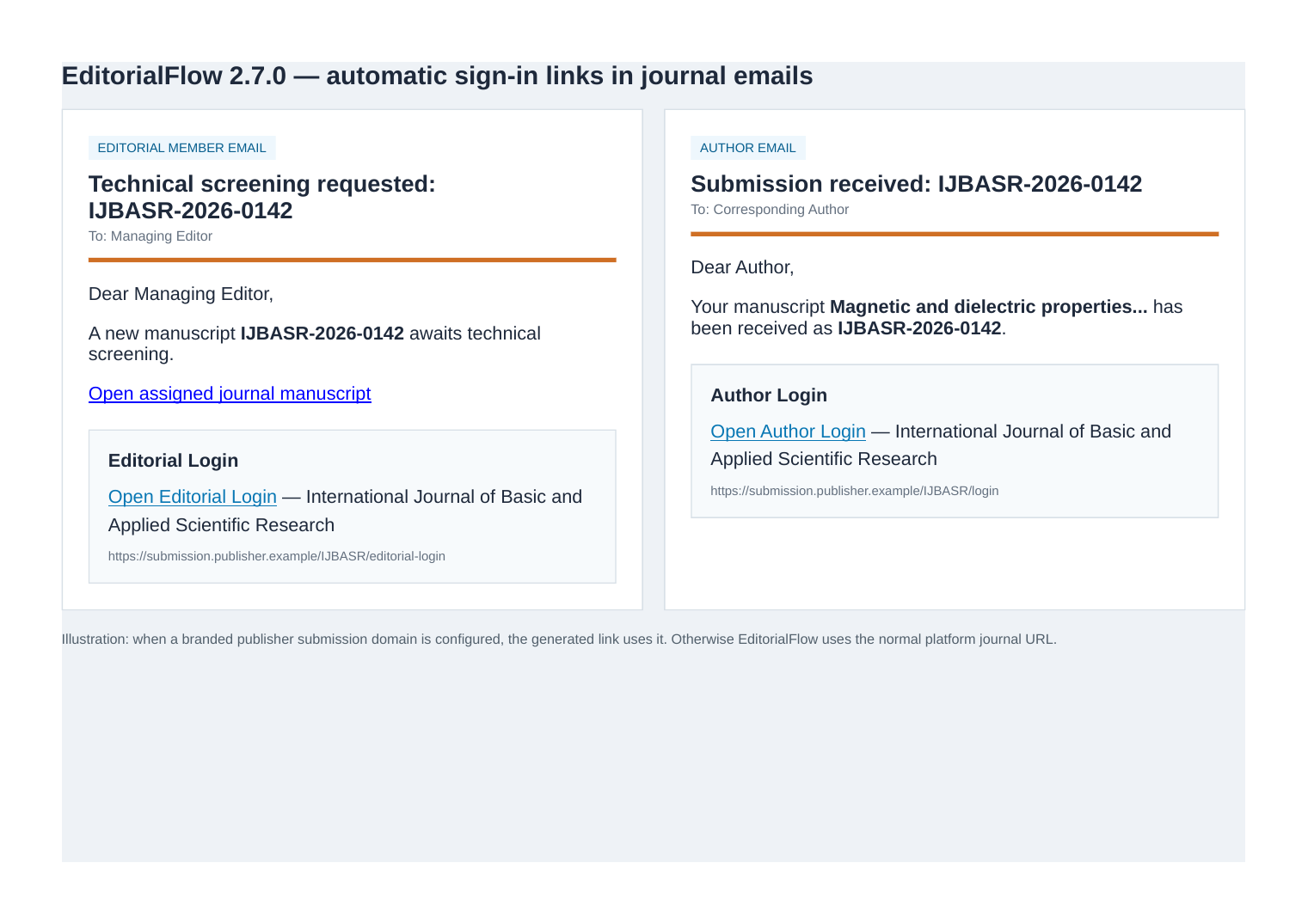
Journal workflow email bodies remain editable. EditorialFlow now automatically appends the appropriate sign-in block: editorial members receive Editorial Login; manuscript authors receive Author Login. When the publisher has a branded submission domain, the generated URL uses it; otherwise it uses the normal platform journal URL.
See Editorial Login & Email Sign-in Links for routing, mixed-role and security details.
Payment settings
Set currency, fee names, amounts and descriptions for the journal. A zero-amount option stores zero and disables the amount field. Payment requests follow completed peer review and provisional acceptance; verified or waived payment is required before final acceptance when payments are enabled.
Purpose Codes — Version 2.5.6
Open Journal Settings → Purpose Codes to create a journal-specific referral purpose such as a conference proceeding, special call or project. Enter a Purpose Code, description, optional Start Date and End Date, and enable it. Codes allow letters, numbers, dash, dot and underscore. Copy/share the generated journal link containing ?ref=CODE. Ended codes are disabled automatically. Use View Submissions to list manuscripts submitted for that purpose.
After a Purpose Code has linked submissions, the code itself is locked from renaming to preserve manuscript history; its description, dates and enabled status may still be changed.
Reviewer Certificate Template — Version 2.5.6
Open Journal Settings → Templates → Reviewer Certificate Template. With no custom upload, the built-in default is the new A4 landscape design with a circular recognition seal and configurable journal/publisher branding. Use Download Sample to obtain the editable HTML, or Preview to view the currently active design with sample reviewer/manuscript details.
- Upload an HTML/HTM certificate template of up to 1 MB; the application validates and sanitizes its markup.
- Use the documented dynamic placeholders for reviewer name, manuscript title, journal name, date, certificate ID, publisher logo and journal cover. Only approved journal/publisher branding image placeholders are supported.
- Preview again after uploading. The active uploaded design now appears in both the preview and completed-reviewer view.
- To return to the bundled design, select Use Default Certificate. Existing custom uploads are cleared for this journal only.
- Test Print / Save as PDF in a modern browser using A4 Landscape and coloured backgrounds; no PDF engine is required on your cPanel server.
Existing journal-specific templates are never overwritten by this upgrade. To adopt the new default, choose Use Default Certificate or upload the new sample manually. The built-in legacy basic PDF is not the same as HTML certificate printing.
Quality checks
Test author submission, technical correction, reviewer invitation and review, revision, fee verification and final decision using separate role accounts. Check the published-article record and notification only with valid publication details. Use the editor manual for workflow instructions.
Email verification and phone numbers
See Email Verification & Phone Numbers for publisher policies, verification messages, pending email changes and phone country selection.